Employee Equipment Linking
You can link employees to equipment on the time sheet to show which employee operates each piece of equipment.
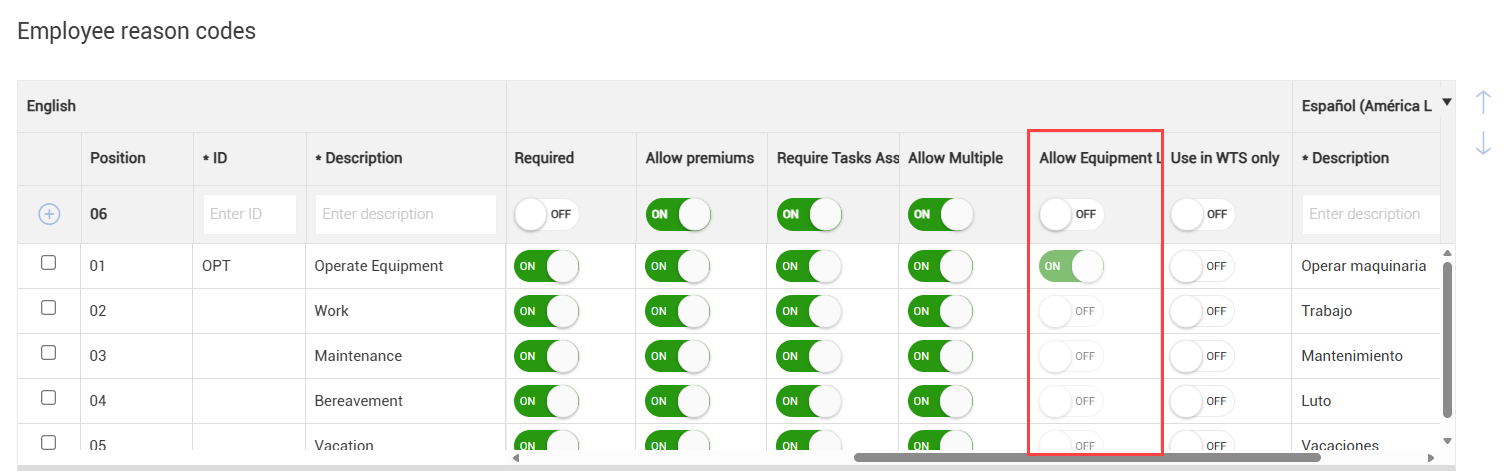
To use this feature, the assigned reason code for the employee’s work hours must have "Allow Equipment Linking" enabled in organization settings, and the employee reason code must be added at the project level.
You can specify the equipment-linking details when adding work hours on a daily plan.
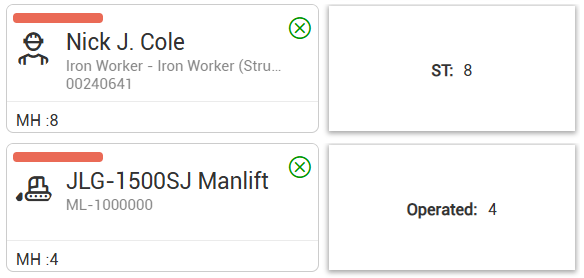
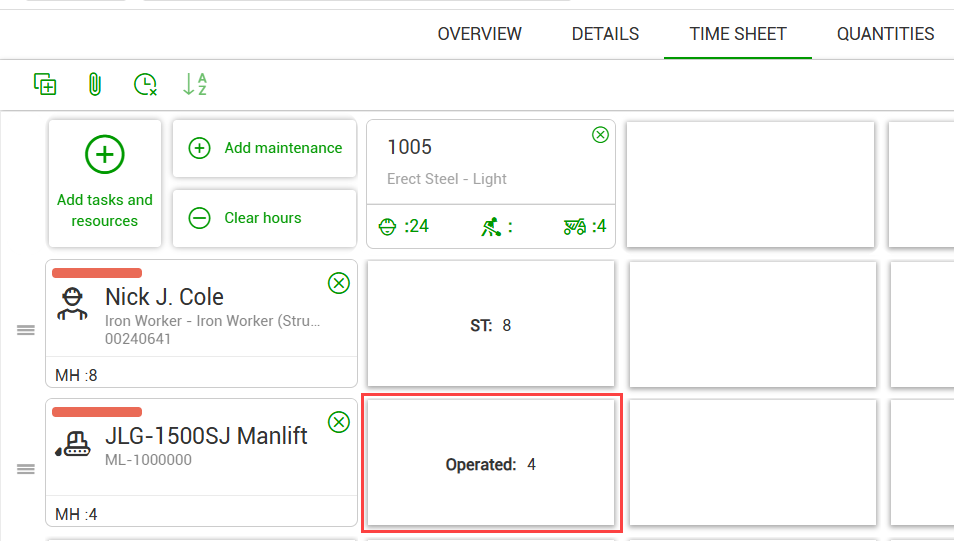
On the Time Sheet tab of a daily plan, equipment linking is indicated by a color-coded bar on the tile of the crew member and the associated equipment.
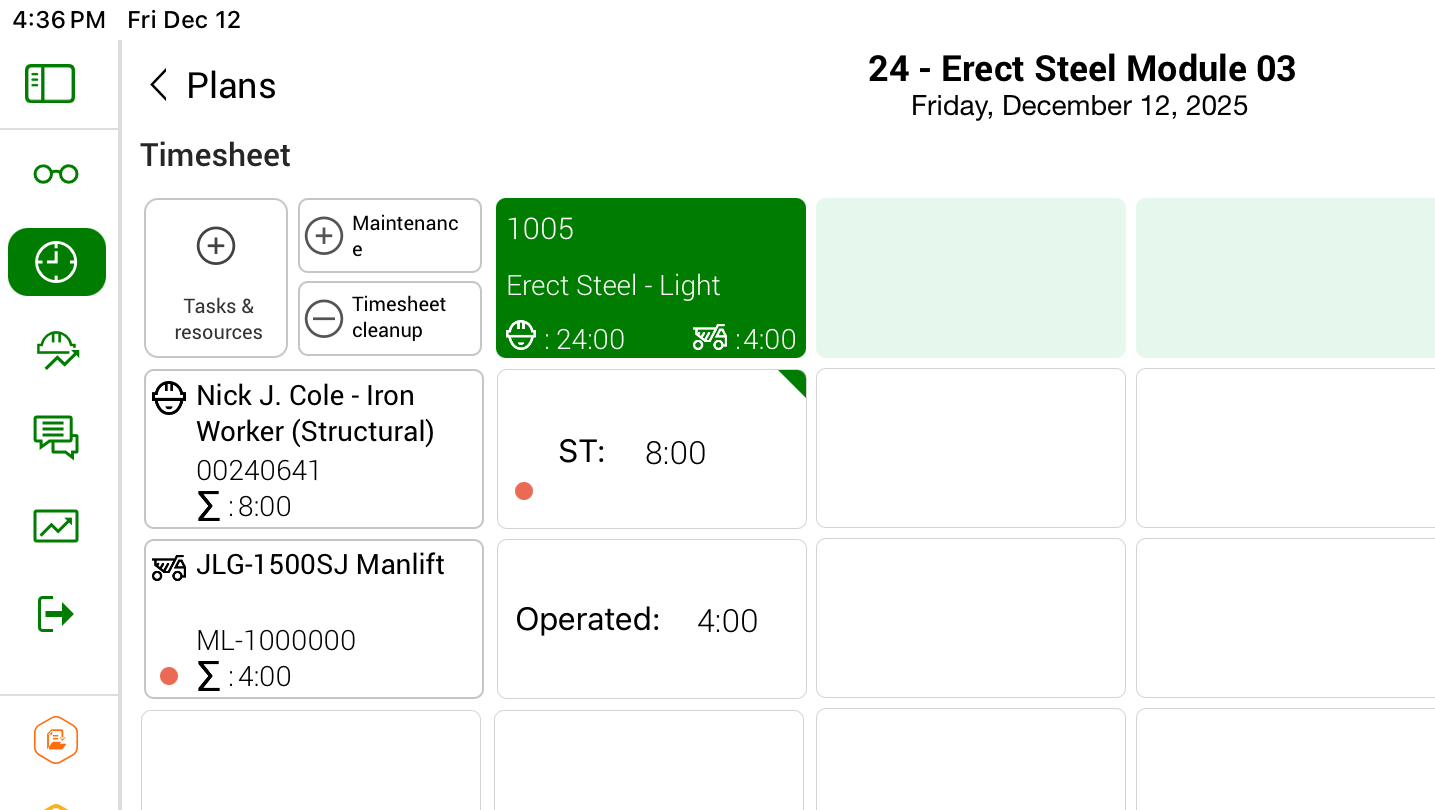
In the Progress mobile application, employee and equipment links are indicated by dots.
Link employees and equipment
-
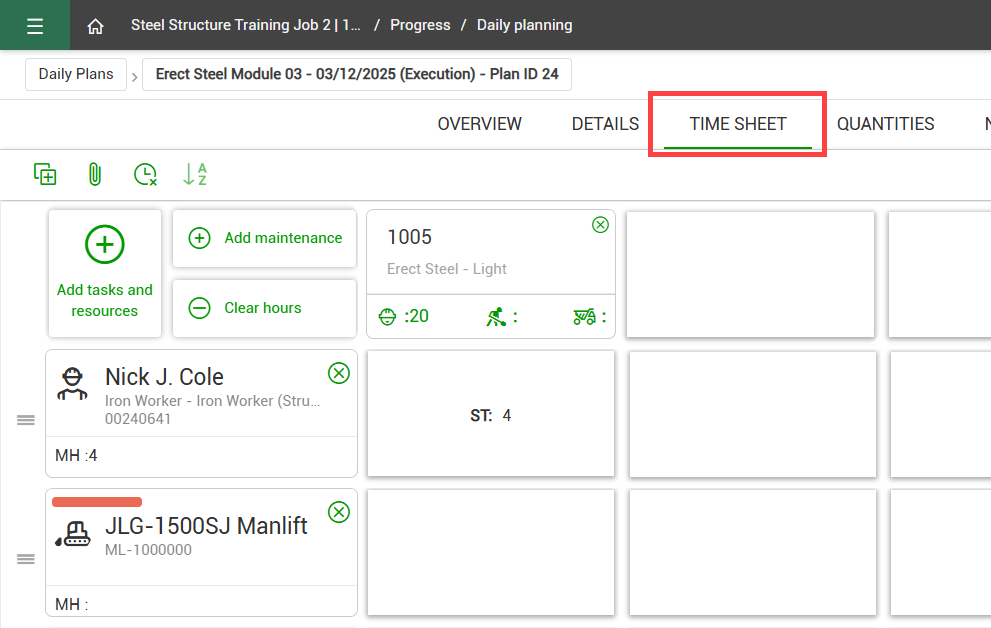
Open the Time Sheet tab on a daily plan. Add employee and equipment resources.
-
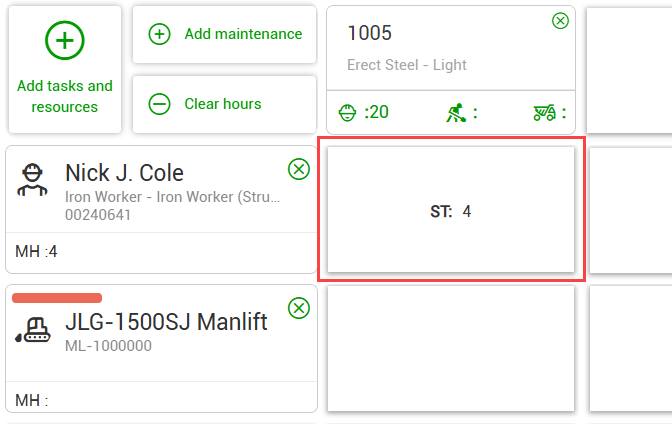
Click the Labor Hours tile for an employee.
-
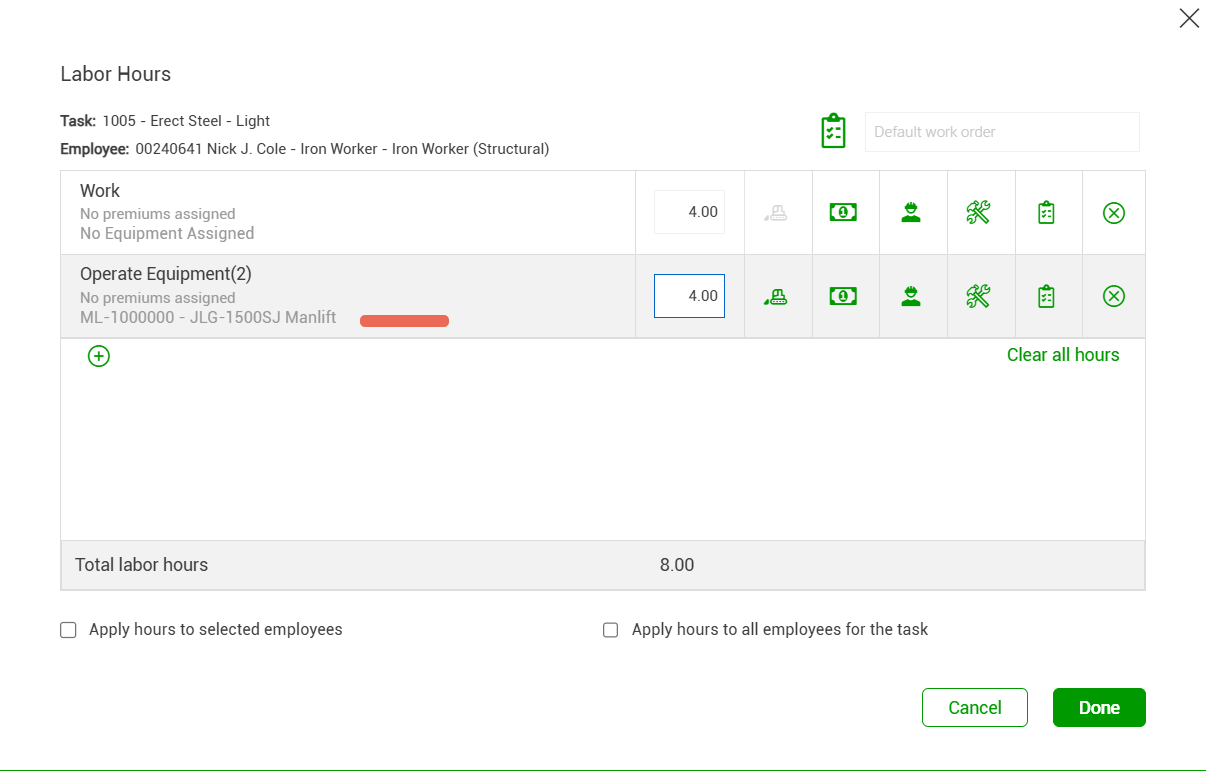
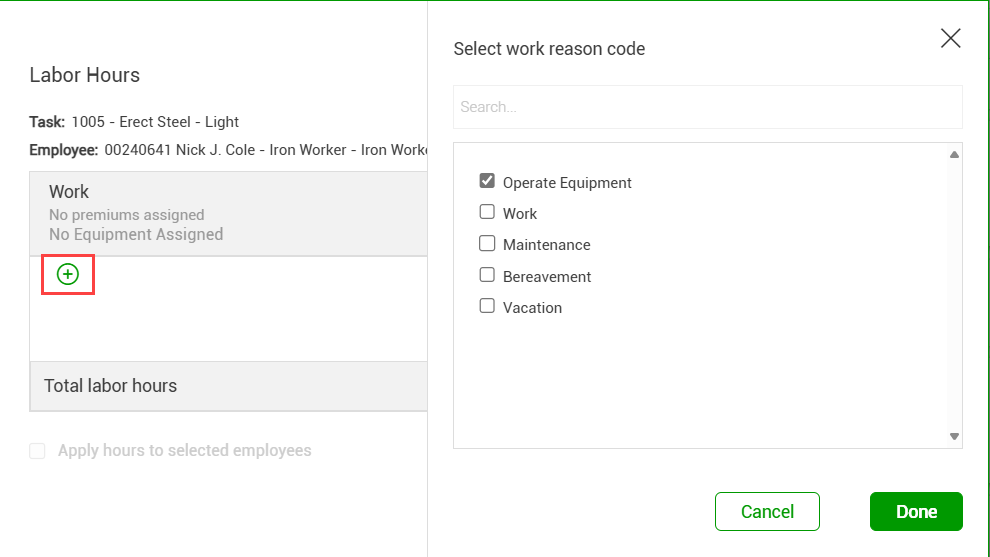
Click the Add icon to add work hours, and then select an appropriate reason code. When you are finished, click Done.
-
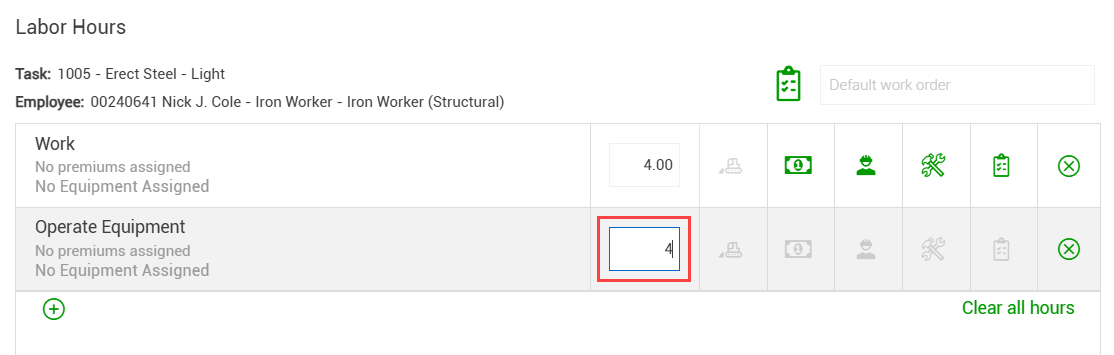
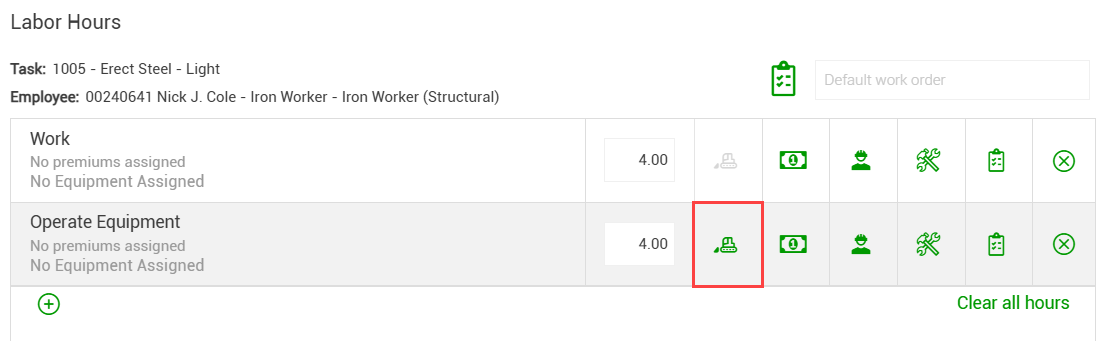
In the new row for work hours, enter the number of hours the employee operated the equipment.
-
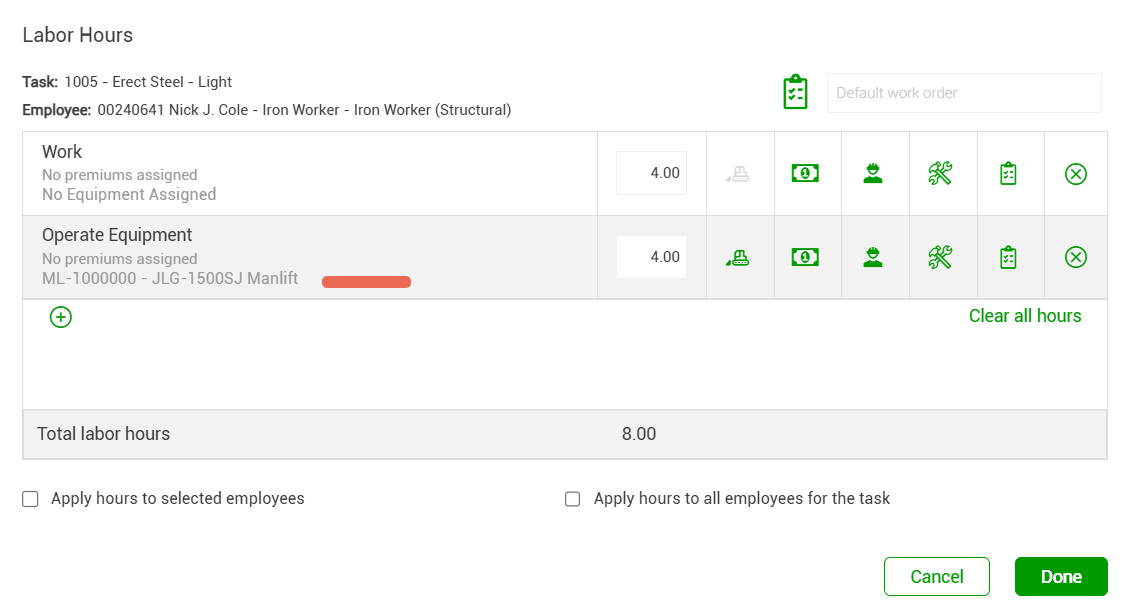
Click the Equipment icon, and then select the appropriate equipment resource and click Done.
-
Now the equipment resource is linked to the employee's work hours. After you finish updating the employee's work hours, click Done.
-
On the Time Sheet tab, the operated hours for the equipment resource are automatically populated, and color-coded bars show the link between the employee and equipment resource.